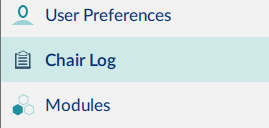
To view the wheelchair’s event log, select Chair Log from the primary navigation sidebar.
The event log is displayed on the left-hand-side of the main content area. It shows active and historical errors (from today and the past week). Active errors display at the top of the log. The active errors screen displays faults that:
- are current on the connected LiNX system
- if in file context, were current when the file was read from the wheelchair
For all errors, the following information is recorded:
- event name – describes the active error
- module – displays the location of the error
- event code – displays the flash code
System events are shown below the active errors. For all events, the following information is recorded:
- event name – describes the event
- module – displays the event location
- event code – displays an event code, if any (for errors, this will be the flash code)
- time stamp – date and time event occurred (not available on LiNX LE systems)
To view more information about an event in the chair log, click the event and its description displays.
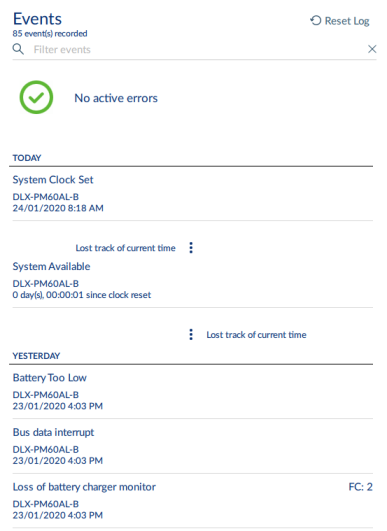
Use Filter events to display events based on filter terms you enter.
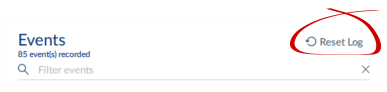
To clear the filter, in the connection context, click the X on its right.
To clear the event log, in the connection context, click Reset Log.