This article explains how to check if your version of the LiNX Access PC tool is up to date.
To view the installed version of the tool, click Help | About from the menu bar to open the About screen (Figure 1) — the version is displayed as indicated in Figure 1.
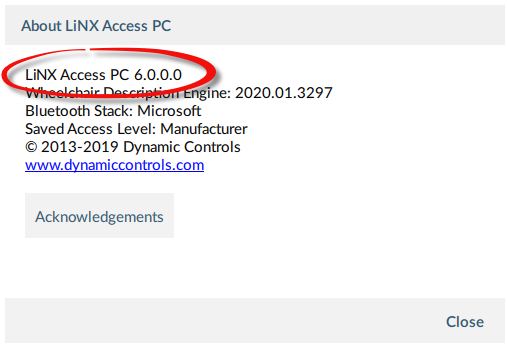
Figure 1: About screen
The PC tool automatically checks for updated software (for the PC tool) and firmware. This operation requires an Internet connection. It is only performed once in a 24 hour period. If application updates are available, a notification displays asking if you want to download them.
- Click Yes to continue.
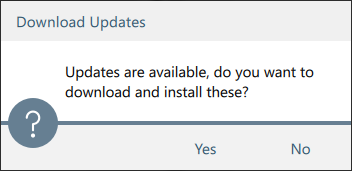
Figure 2 — Download updates?
After downloading, a notification displays asking if you want to install the updates.
- Click Yes to continue.
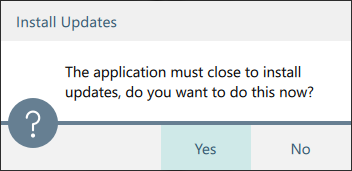
Figure 3 — Install updates?
Only new versions of the application software require a download confirmation. If new firmware is available, it will be downloaded at the same time as the application software, but it will not be installed. Installation of firmware is a manual operation that lets you choose when to upgrade each module. To get the latest version of the tool manually:
- click Help | Check for Updates; or
- check the Dynamic Controls website at www.dynamiccontrols.com
If new firmware is available, a notification displays.
- Click View Updates to view the firmware modules that need updating and to select the modules you wish to update.
See here for information on how to upgrade the firmware.
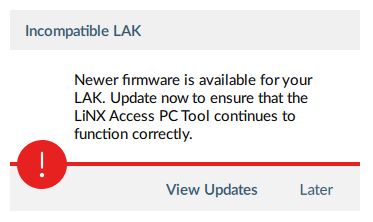
Figure 4 — view updates?
Troubleshooting
An Internet connection is required when checking for updates. If an Internet connection is unavailable, the following message is displayed:
Failed to check for updates. The software was unable to connect to the Internet. Please check that your network settings are correct and try again.
If your computer uses a proxy server to connect to the internet, you will need to configure your network settings — see How to configure Internet settings for a proxy server.
If Internet access is available but the LiNX Access PC tool is not able to check for updates, it is possible that your organisation’s network policy does not permit connections to unapproved websites. In this case you will need to have the following URL added to your organisation’s network whitelist: https://mage.dynamiccontrols.com/