The Home screen is the default screen after connecting to a wheelchair or opening a configuration file. It provides general information about the system as well as access to the tool’s programming and diagnostic screens.
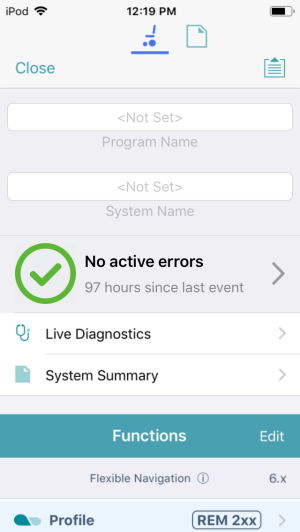
The Program Name and System Name are located at the top of the Home screen. If they are not visible, you can reveal them by swiping down on the Home screen.
The parameter groups accessed and displayed by the LiNX Access iOS tool vary depending on your LAK’s access level (manufacturer or distributor), the system’s configuration and the connected modules.
The following shows the mapping to parameters and diagnostic information accessible from the home screen when using the distributor version of the LAK.
| Program Name |
| System Name |
| Active Errors |
| Live Diagnostics |
| System Summary |
| Profiles and functions (including Attendant profile, where relevant) |
| Modules |
| Motions |
| Positions |
| Angle Sources |
| Trigger Angles |
| User Preferences |
| Lighting |
Drill down from these parameters to access further parameters (described below):
- Detail map
- Detail map – profiles, attendant profile
- Detail map – modules
- Detail map – actuator motions
Detail map
The parameters accessible from the home screen are:
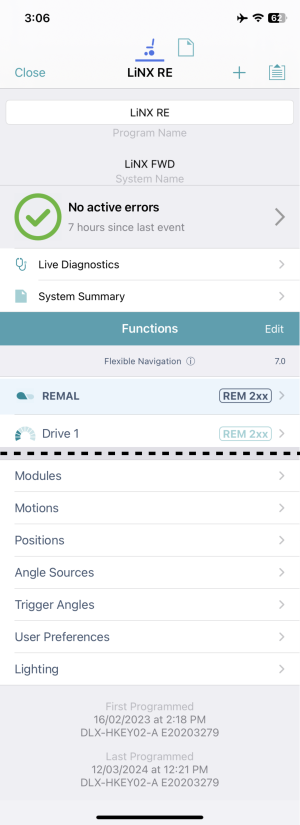
| Active errors | Chair Log | Active errors |
| Event Log | ||
| Statistics | Battery Usage | |
| Drive Statistics |
| Live Diagnostics | Drive | Speed Demand |
| Turn Demand | ||
| Left Motor | ||
| Right Motor | ||
| Motor Resistance | ||
| Battery Voltage | ||
| Speed Dial | ||
| Angle Sensor | ||
| Angle Sources | ||
| Actuator Channels | ||
| Control Inputs | ||
| System Summary | Chair | System Modules |
| Tools | Access Key | |
| Access Level | ||
| WDE Version | ||
| Application Version | ||
| Link to Dynamic’s website | ||
| Privacy Policy |
| Profiles/functions | See Detail map – profiles |
| Modules | See Detail map – modules |
| Motions | See Detail map – motions |
| Positions | See Detail map – positions |
| Angle Sources | Configurations (Angle Sources 1–16) |
| Trigger Angles | Configurations (Trigger Angle 1–7) |
| User Preferences | Drive Settings |
| Switched Driving | |
| Sleep and Rest Settings | |
| Quadrant Actions in Rest | |
| Lock Settings | |
| User Function Navigation | |
| User Function Change | |
| Control Input/Output Settings | |
| Display Settings | |
| Energy Use Settings | |
| Speedometer and Odometer | |
| Audible Cues |
| Lighting | Turn Indicators |
| Position |
Detail map – profiles
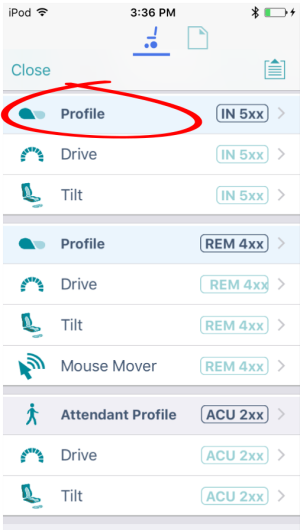
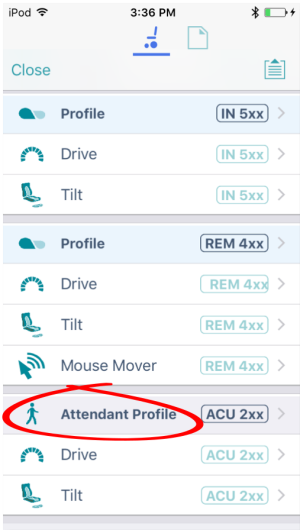
A profile is a container for user functions: drive, seating, mouse mover, utility and switch control. A profile can contain one or more functions. For profiles with multiple functions, the functions can be of the same type, or mixed. LiNX has two types of profile:
- Profile (many can be created)
- Attendant profile (one available, and only on an ACU module)
Wheelchair occupants can see all profiles except the attendant profile, while wheelchair attendants can only see the attendant profile.
| Drive | General |
| Forward | |
| Reverse | |
| Turn | |
| Stability | |
| Latched Driving | |
| Performance | |
| Operation |
| Seating | General |
| Axis |
| Mouse Mover | General |
| Cursor Speeds | |
| Operation |
| Switch Control | General |
| Utility | General |
| Forward Momentary/Short Press | |
| Forward Long Press | |
| Reverse Momentary/Short Press | |
| Reverse Long Press | |
| Left Momentary/Short Press | |
| Left Long Press | |
| Right Momentary/Short Press | |
| Right Long Press |
Attendant profile
| Drive | General |
| Forward | |
| Reverse | |
| Turn | |
| Stability | |
| Latched Driving | |
| Performance | |
| Operation |
| Seating | General |
| Axis |
Detail map – modules
The parameters accessible from the Modules screen are:
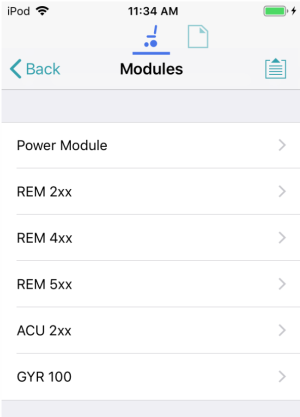
| Modules | Power module | Motors |
| Load compensation | ||
| Custom load compensation | ||
| Park brake | ||
| Actuators – Electrical and Timing | ||
| Control inputs – Port settings | ||
| Control input/output port settings | ||
| ACU / Compact Remote / Input Module / REM modules / TPI | User input – configuration | |
| Port settings (as relevant) | ||
| GYR 100 | Gyro performance |
Detail map – motions
The parameters accessible from the Motions screen are:
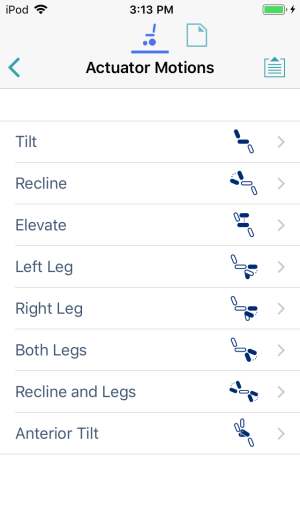
| Motions | Tilt, Recline, Elevate, Left leg, Right leg, Both legs, Recline and legs, Anterior Tilt | Identification |
| Behaviour | ||
| Actuation channels |
Detail map – positions
The parameters accessible from the Positions screen are:
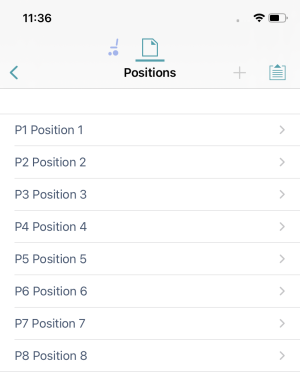
| Positions | Positions (1-8) | Identification |
| Configuration |