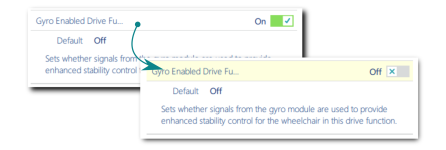
To modify a program on a file, first select a parameter and then edit it.
Select a parameter
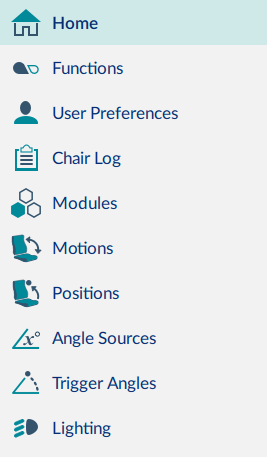
Primary sidebar
Select a parameter from a parameter group listed in the primary navigation sidebar:
- Functions — for drive and seating functions
- User Preferences — for drive, sleep, lock, user function navigation and control input / output settings
- Modules — for modules (power modules, remote modules etc.)
- Motions — for actuator motions
- Positions — for memory positions
- Angle Sources — for positions, trigger angles, or the seating angle to show on a display remote module
- Trigger Angles — for trigger angles and rules
- Lighting — for position and turn indicators
Parameter groups displayed in the primary navigation sidebar depend on the modules in the connected system. If the connected system does not include a module (for example, a gyro) it will not appear in the sidebar. A secondary sidebar displays for certain parameter groups. It appears to the right of the primary navigation sidebar to help you drill down further through the parameter lists.
Edit a parameter
Parameters can be modified in a number of ways:
- Numerically
- By editing text
- From a drop box
- Via a switch
In file context, parameters can only be modified in bulk edit mode.
When you edit a parameter in bulk edit mode, its background colour changes to yellow. The yellow background reverts to white when the file is saved or written to a wheelchair.