This article explains how to save and share a program as a file using the LiNX Access PC tool.
To save the connected program as a file:
- Connect to a LiNX system (see How to connect to a wheelchair ).
- Click the Save to file button (figure 1) on the toolbar; or click File on the menu bar and select either Save or Save As… from the menu (Figure 2). For either option, a Save File As dialogue will open.
- Select an appropriate folder and enter a name into the File Name text box.
- Click Save to finish — the file will be saved with a .lci extension.
- Attach the saved file to an email to share.
Figure 1: Save to file button
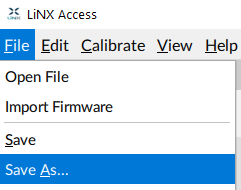
Figure 2: File menu