There are three ways to add a function:
- Add a new function
- Copy a function template (a function template is a preset function)
- Duplicate an existing function
Add a new function
- Tap the Add Function button.

- Tap the New Function button.
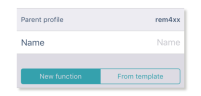
- Select the Function type you require.
- Select a User input.‡1
- Tap Done (top right of the screen).
- Continue editing, or tap Done again to return to the home screen.
- From the home screen, tap the Write button to write the program to the chair; or, on the Application menu, save your changes to a file.
‡1If you select a user input of “Follow Profile”, then when you change the user input at the profile level the function also updates. A function with a user input set to “Follow Profile” displays with a box around its user input.
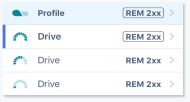
Copy a function template
- Tap the Add function button.
- Tap the From template button.
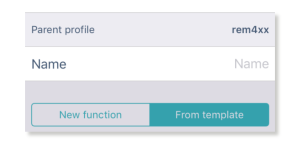
3. Select the template you require.
4. Tap Done (top right of the screen).
5. Continue editing, or tap Done again to return to the home screen.
6. From the home screen, tap the Write button to write the program to the chair, or, on the Application menu, save your changes to a file.
Duplicate an existing function
- Tap a function.
A blue Duplicate button appears.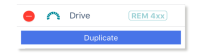
- Tap the blue Duplicate button. An identical copy of the function is added below it.
Note: The duplicate will have the same name as the original. To give the new function a new name, access it at the functions list on the home screen. - Continue editing, or tap Done (top right of the screen) to return to the home screen.
- From the home screen, tap the Write button to write the program to the chair; or, on the Application menu, save your changes to a file.
You can also duplicate a function from the home screen. To do this:
- Swipe a function to the left. Duplicate and Delete buttons appear.
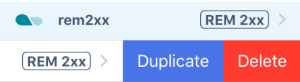
- Tap Duplicate.
An identical copy of the function is added below it. - Give the new function a new name.