You can:
- share a .lci or .lcb file from the iOS tool (including by email)
- import a .lci or. lcb file into the iOS tool
Sharing a .lci or .lcb file from the LiNX Access iOS tool
To share one or more files with other people:
- Select Edit from the Load From File screen (top-right navigation bar).
- Select one or more files from the file list displayed.
- Tap the Share icon at the bottom-right of the screen.

- A standard range of Share options displays.
- Select the Share option you require (Mail, for example).
Selected program files will be added as attachments to the selected option. - Follow the prompts to share or send the files.
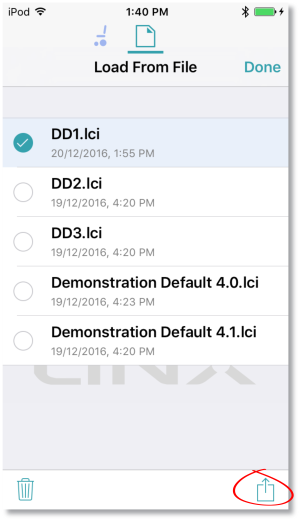
Selecting the share options
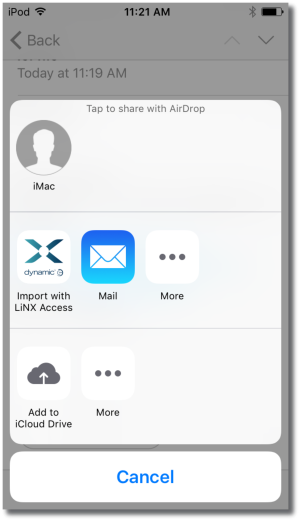
Share options
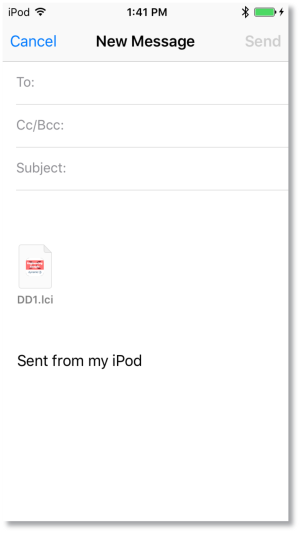
Sending a file via Mail
Importing a .lci or .lcb file into a LiNX Access iOS tool
To import a .lci or .lcb file into the tool:
- Email the file (as an attachment) to the email app on your iOS device.
- Tap the file attachment in your email app.
A range of Share options displays (see Share options image above). - Select the ‘Import with LiNX Access’ option.
The file displays in the Load from File screen’s file list.