This article explains how to navigate profiles and functions in tap-only mode.
This section assumes that you are in tap-only mode. See here for instructions on switching between the modes swipe and tap-only.
Viewing and selecting function cards in current profile
- Tap on the navigation button (short press). The screen changes from displaying the active function card to displaying the function card preview — figure 1 (left).
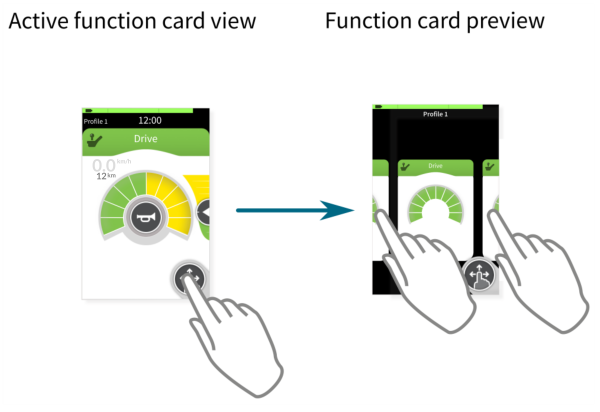
Figure 1 — Active function card view (left) and function card preview (right)
2. Tap to the left or right of the card that is in the middle of the display to view other function cards within the current profile — figure 1 (right).
3. Select a function card by either tapping on the required function card when it comes into view or, when the required card is in the middle of the display, wait a few seconds, after which, the card is selected automatically.
Viewing and selecting function cards in another profile
- To view and select function cards in another profile, tap above or below the function card that is displayed in the preview screen. The screen view will focus on the first function in the profile or the last used function in the profile depending on how it is set up.
- Tap to the left or right of the card that is displayed in the preview screen to choose the required function in the selected profile.
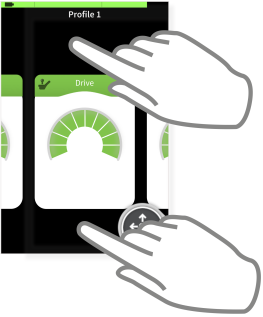
Figure 2 — tap above or below the function card to select from another profile