This article explains how to activate the screen lock on the REM400 / REM500.
The screen lock is a security feature that the user can activate to prevent other people accidentally or intentionally interfering with the touch screen. It also prevents any unintentional response caused by rain or other liquids that may land on the touch screen.
Instructions – activating
- Open the status and settings screen.
- From the status and settings screen, tap on the Screen Lock button — the slider position changes to ON.
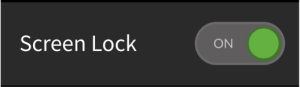
The screen lock is activated when you leave the settings menu. When the screen lock is activated, the display continues to display normally but does not respond to any tap or swipe gesture from the user.
Instructions – deactivating
Either:
- Power-cycle the system, or
- Activate a control input that has been set up to open the settings menu. Tap on the Screen Lock button — the slider position changes to OFF.
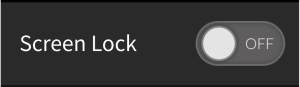
| NOTE | For users that do not wish to interact with the touch screen, the dealer or therapist can set the screen lock to be activated permanently using the Screen Lock parameter. When this parameter is set:the display continues to display normally but does not respond to any tap or swipe gesture from the user, andthe position of the Screen Lock slider is set to ON and cannot be changed by the user.The Screen Lock parameter is located in the programming tools under: Chair Setup | Modules | REM4xx/REM5xx |