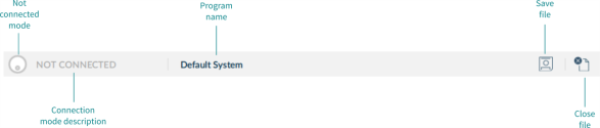
The toolbar’s display depends on:
- the context (connection or file)
- whether it is connected to a system
- whether it is in live edit or bulk edit mode
| Toolbar section | Displays (where relevant) |
|---|---|
| Left hand | the connection state (as an animated, circular, edit status icon)a connection mode description; or,the read and write buttons |
| Middle | the function action optionsthe program namean option to reset the wheelchair to default settingsan option to manage the wheelchair configuration |
| Right hand | a file save as optionan option to close the current connection |
The edit status icon
The edit status icon describes the current edit mode
 | Live edit — icon pans from right to left with a wave motion |
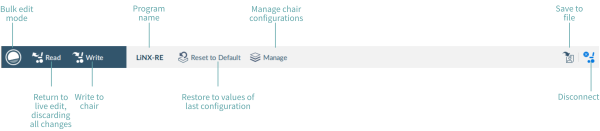
 | Bulk edit — icon sways left and right with a flat horizon |
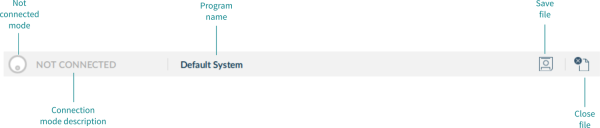
 | Disconnected — icon is greyed out and not animated |
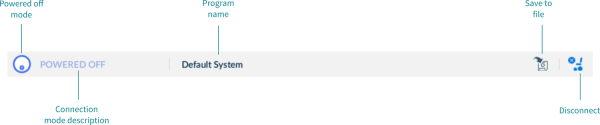
 | Powered off — icon is not animated |
Connection context on the toolbar
Live edit
The image below shows the toolbar when connected to a wheelchair and in live edit mode. Live edit is the default mode on connection and the icon is animated.

Bulk edit
The image below shows the toolbar when connected to a wheelchair and in bulk edit mode. The icon is animated and the read and write buttons display.
Disconnected
The image below shows the toolbar when there is no connection to a wheelchair. The icon is greyed out and not animated. The description displays “NOT CONNECTED”.
Powered off
The image below shows the toolbar when connected to a wheelchair and the chair has been powered off. The icon is not animated. The description displays “POWERED OFF”. (When you power on, your connection is automatically reinstated.)
File context on the toolbar
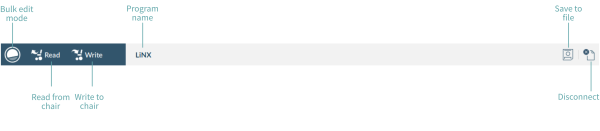
Bulk edit
The image below shows the toolbar when editing a file and in bulk edit mode. The icon is animated and the read and write buttons display.
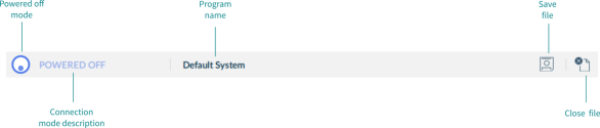
Bulk edit — powered off
The image below shows the toolbar when editing a file in bulk edit mode and the chair has been powered off. The icon is not animated. The description displays “POWERED OFF”. (When you power on, the PC LiNX Access tool returns to the previous connection in live edit mode.)
Bulk edit — disconnected
The image below shows the toolbar when editing a file when there is no connection to a wheelchair. The icon is greyed out and not animated. The description displays “NOT CONNECTED”.