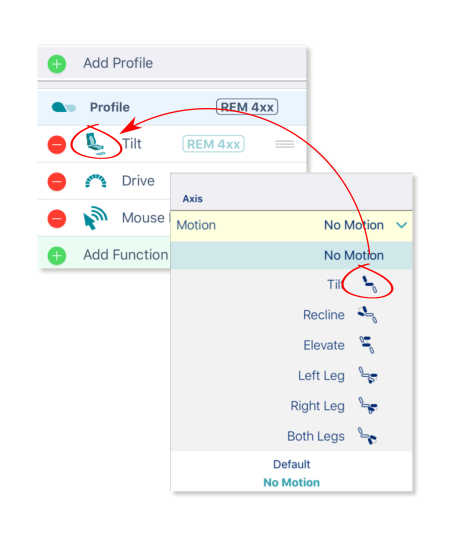
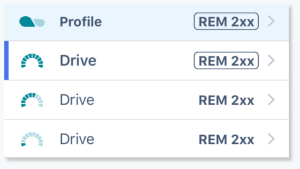
The drive and seating function icons are dynamic to reflect the activity in each function.
Drive icons
The drive icon indicates the percentage of maximum speed selected for a drive function. The icon changes when you edit the speed graph.
Seating icons
The seating icon can be edited to indicate what part of the seat the function is for.
To do this:
- From the home screen, open a seating function.
- Scroll to Axis.
- Open Motion.
- Unlock bulk edit.
- From the Motion drop-down menu, select the motion you require. The function icon changes to the icon of the selected motion.
- Tap the Write button on the home screen to write the icon edit to the chair.