To add a new function:
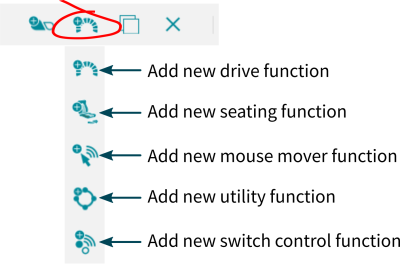
- Click the Add function button.
- Select a function from the drop-down list:
- New Drive Function
- New Seating Function
- New Mouse Mover Function
- New Utility Function
- New Switch Control Function
- If New Drive Function is selected in step 2 above, the next steps are detailed in Adding new drive function.
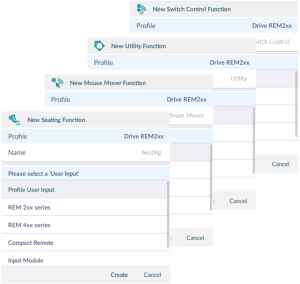
- If New Seating Function, New Mouse Mover Function or New Utility Function is selected in step 2 above, the next steps are detailed in Adding new seating, mouse mover, utility or switch control function.
Adding new drive function
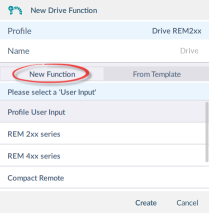
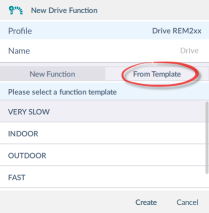
When adding a drive function from step 2 above, the New Drive Function dialog box appears. In this dialog box, you have a choice to add the new drive function with default values or add it with values from a template.
Drive function based on default values
- Enter a function name.
- Select the New Function tab
- Select a user input from the User Input list.
- Click Create.
- Click the Write button to write the program to the chair; or, on the Application menu, save your changes to a file.
Drive function from template
- Enter a function name.
- Select the From Template tab.
- Select a template from the template list.
- Click Create.
- Click the Write button to write the program to the chair; or, on the Application menu, save your changes to a file.
Adding new seating, mouse mover, utility or switch control function
For seating, mouse mover and utility functions, in the dialog box that appears:
- Enter a function name.
- Select a user input from the user input list.
- Click Create.
- Click the Write button to write the program to the chair; or, on the Application menu, save your changes to a file.