You can save a file using:
- Save
- Save As
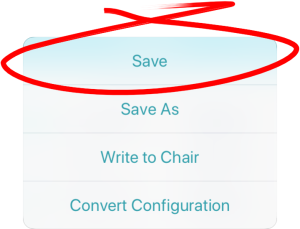
Using Save
To save the current program as a file to an iOS device:
- Tap the Application menu button.

- Tap Save.
After saving the program, the tool displays a message that the save was successful and with the file’s name. - Tap Dismiss to remove the message and continue.
All files are saved with a .lci extension.
- If the program name has been set, the file can be saved with the program name.
- If the program name has not been set, the file can be saved with a date / time stamp: YYYYMMDD-HHMMSS.lci where:YYYY = year;MM = month;DD = day;HH = hour;MM = minutes;SS = seconds.
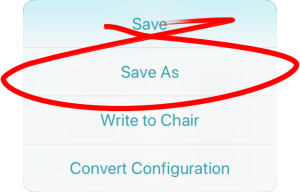
Using Save As
To save the current program as a file with a different name:
- Press the Application menu button.

- Select Save As.A dialog displays asking for the new file name.
- Enter the new file name.
- Tap Save.After saving the program, the tool displays a message showing the file’s name and that the save was successful.
- Tap Dismiss to remove the message and continue.
All files are saved with a .lci extension.
- If the file has not been saved before, and if the program name has been set, the save as dialog suggests saving the file with the program name.
- If the program name has not been set, the file can be saved with a date / time stamp: YYYYMMDD-HHMMSS.lci where:YYYY = year;MM = month;DD = day;HH = hour;MM = minutes;SS = seconds.
- If the file has been saved before, the save as dialog suggests saving with “Copy of” prepended before the name. For each subsequent save, it suggests saving with an incremental numerical value appended to the name.